
Screenshots
App details
- Version
- 1.1.9.467 | 1.1.9.466 | 1.1.4.347 | 1.1....
- Size
- 8.78 MB
- Updated
- November 6, 2024
- Requires
- Windows XP
- Language
- English | German | Greek | Spanish | Fre...
- License
- Free
- Developer
- Alexandr Irza
- Category
- Windows OS
SoftPas in:
This product is also available in the following languages:
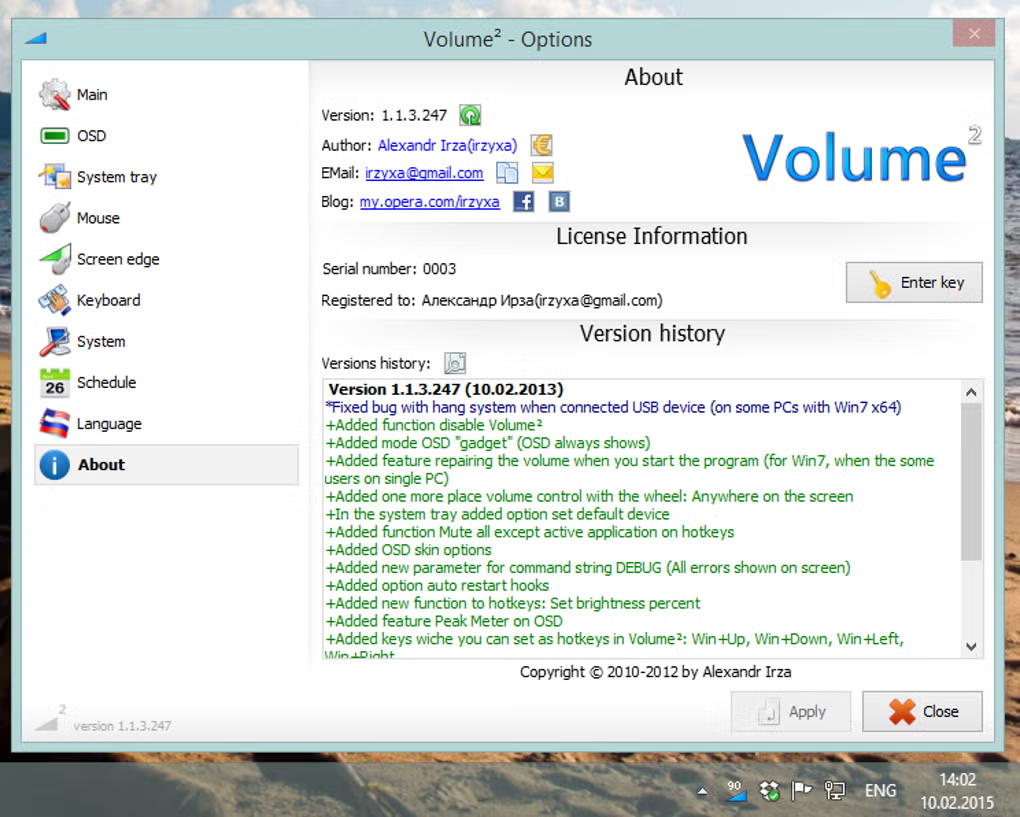
About Volume 2
Download Volume 2 – Advanced Free Audio Controller for Windows
Overview
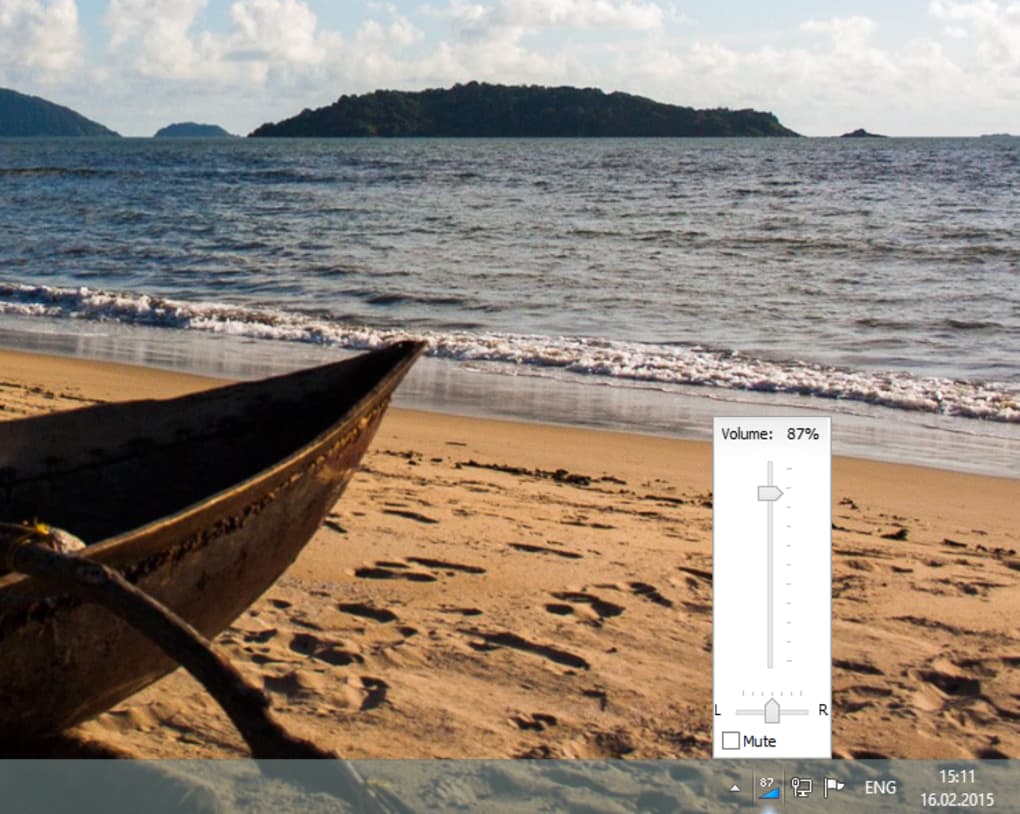
Volume 2 is a free, lightweight audio management suite designed to replace the standard Windows sound controller with a richer, more customizable experience. First released in 2012, this 83.8 KB utility works across Windows XP through Windows 8 and supports more than a dozen languages. The core idea behind Volume 2 is to give users granular control over every aspect of audio playback— from simple volume adjustments to sophisticated equalizer settings, hot‑key shortcuts, and visual skins that suit any desktop theme. Because it operates as a standalone mixer, it can be integrated with any Windows‑compatible playback device, whether built‑in speakers, USB headsets, or external DACs. The software’s small footprint ensures that it runs smoothly even on older hardware, while the modular design lets power users tailor the interface to their workflow. Whether you’re a gamer looking for instant mute toggles, a music enthusiast wanting precise frequency tweaks, or a professional who needs quick access to multiple audio streams, Volume 2 provides a versatile, secure, and free solution that eliminates the need for third‑party plug‑ins or costly upgrades.
Key Features and Capabilities
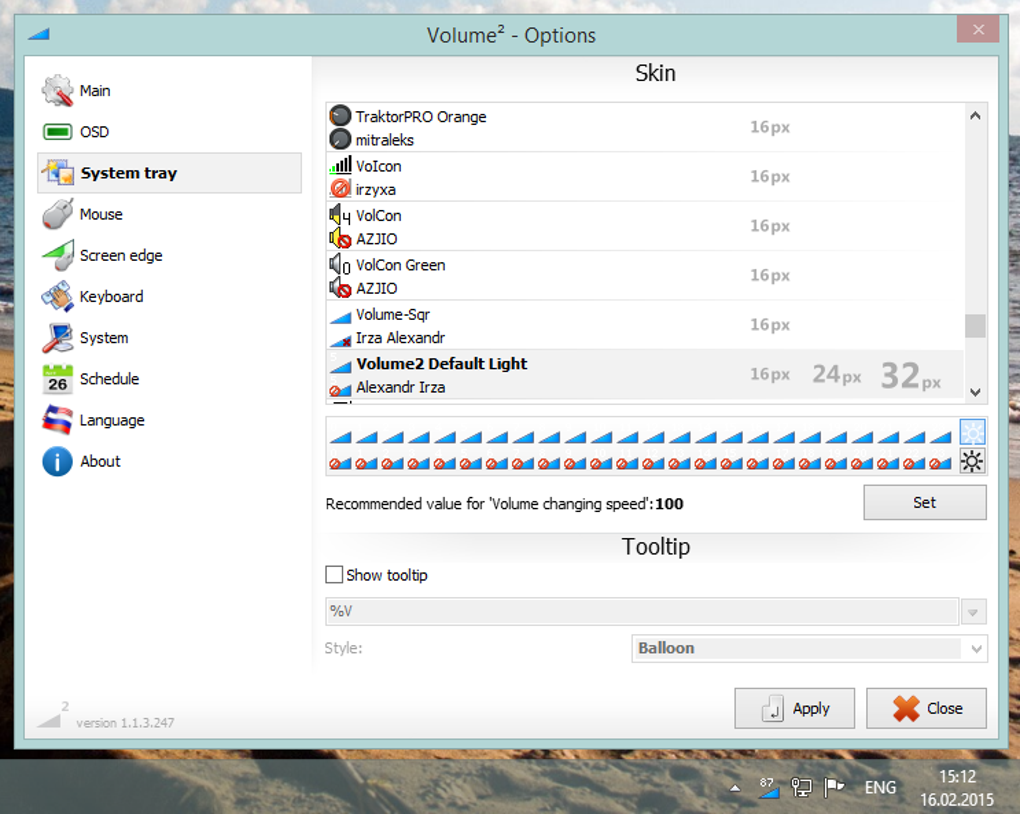
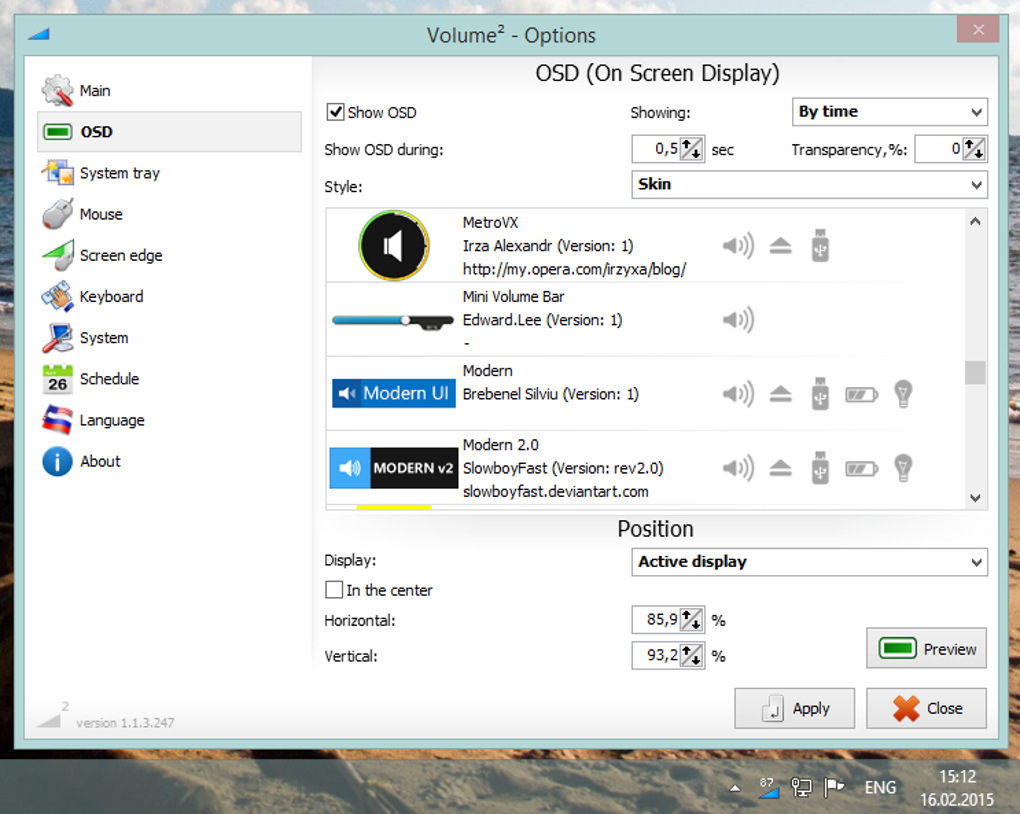
- Customizable Skins: Choose from a variety of visual themes that replace the default Windows volume icon with rotating wheels, sliders, or minimalist bars.
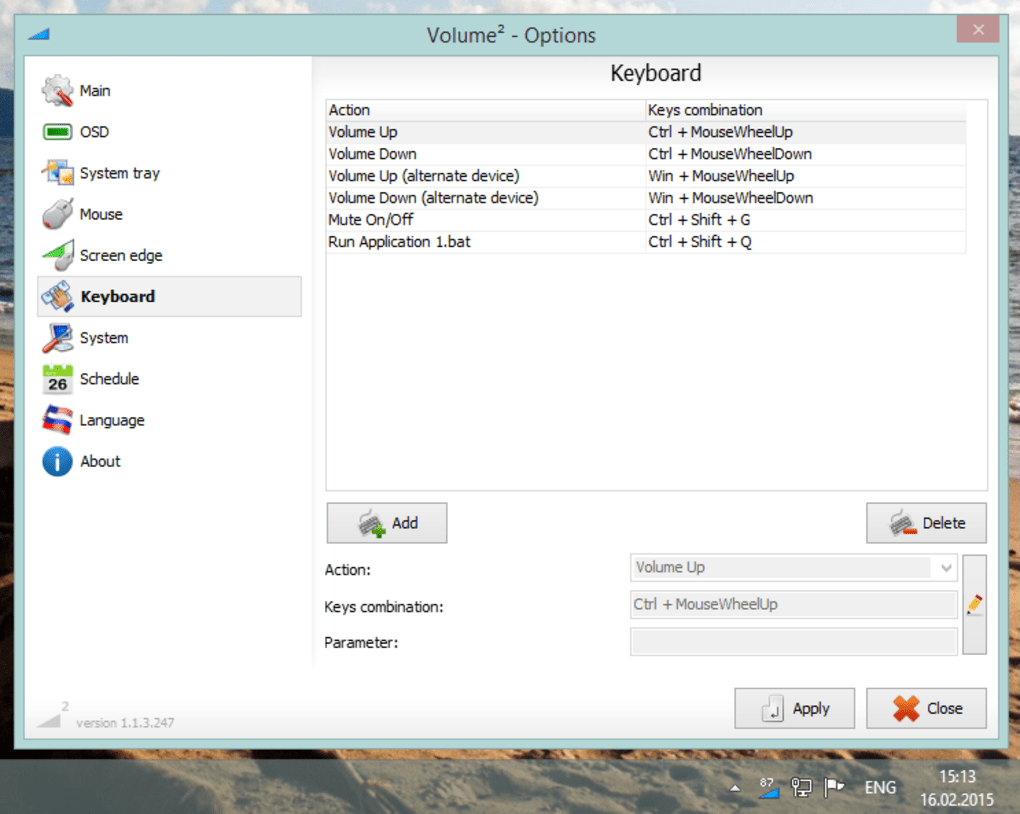
- Hot‑Key Support: Assign keyboard shortcuts for mute, volume up/down, and preset equalizer profiles, enabling instant changes without leaving your application.
- Advanced Equalizer: Ten‑band graphic equalizer with preset modes (Rock, Jazz, Classical, etc.) and the ability to save custom curves for future use.
- Multi‑Device Integration: Seamlessly manage audio output for multiple devices, including USB headphones, Bluetooth speakers, and external sound cards.
- On‑Screen Rotating Wheel: Replace the static volume bar with an interactive wheel that can be turned using the mouse or scroll wheel for precise adjustments.
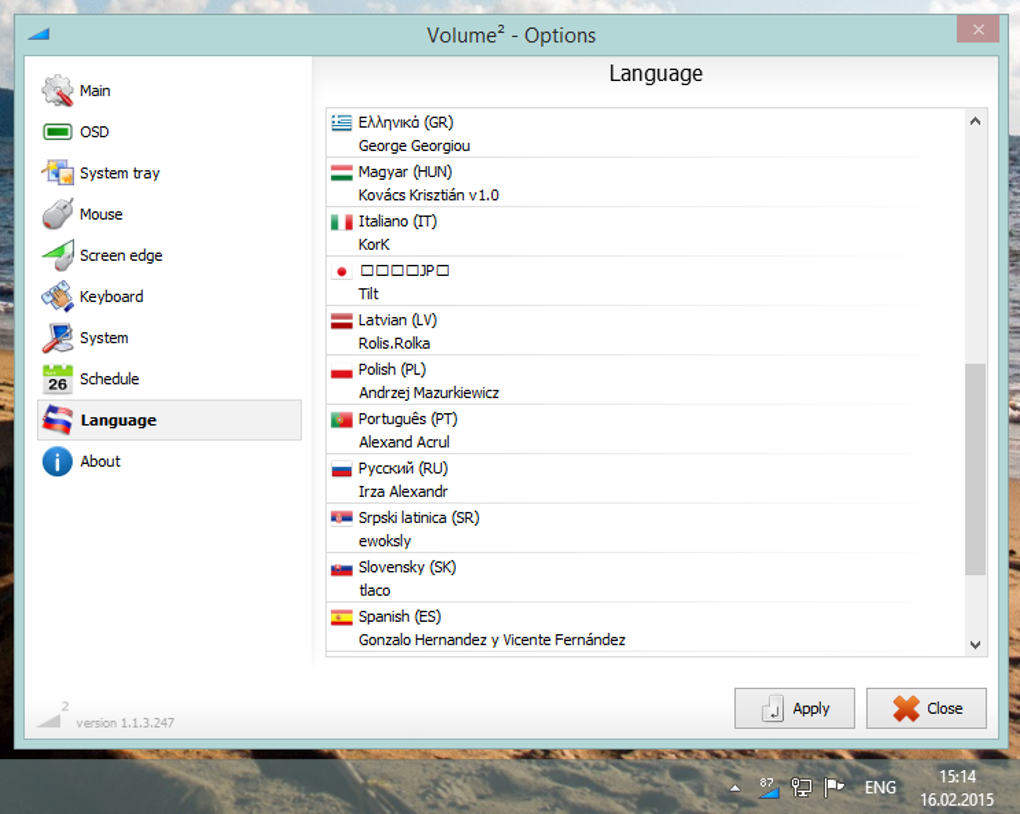
- Language Localization: Supports over twelve languages, making the interface accessible to a global audience.
- Lightweight Architecture: At under 84 KB, the program consumes minimal RAM and CPU, ensuring no performance hit on gaming or media playback.
- Free Updates: Regularly released patches improve stability, add new skins, and expand device compatibility without any hidden fees.
- Secure Installation: Digitally signed installer prevents tampering and guarantees a clean, malware‑free setup.
- Portable Mode: Run Volume 2 from a USB stick on any compatible Windows PC without needing administrator rights.
Installation & Usage Instructions
Getting started with Volume 2 is straightforward, even for users who are not technically inclined. Follow these steps to download, install, and configure the tool for optimal performance:
Step 1 – Download the Installer
Visit the official Volume 2 website or a trusted software repository. Click the Download Free button, which will retrieve a .exe file sized at 83.8 KB. Because the installer is digitally signed, Windows Defender will usually display a green check, confirming its authenticity.
Step 2 – Run the Installer
Double‑click the downloaded file. The wizard will prompt you to accept the license agreement. Since the program is free, no payment information is required. Choose the default installation path (typically C:\Program Files\Volume2) or select a custom folder if you prefer a different location. Click Install and wait a few seconds— the lightweight nature of the software means the process finishes almost instantly.
Step 3 – Initial Configuration
After installation, Volume 2 launches automatically. The first run presents a quick setup wizard that asks you to:
- Select your preferred skin.
- Enable or disable hot‑key support.
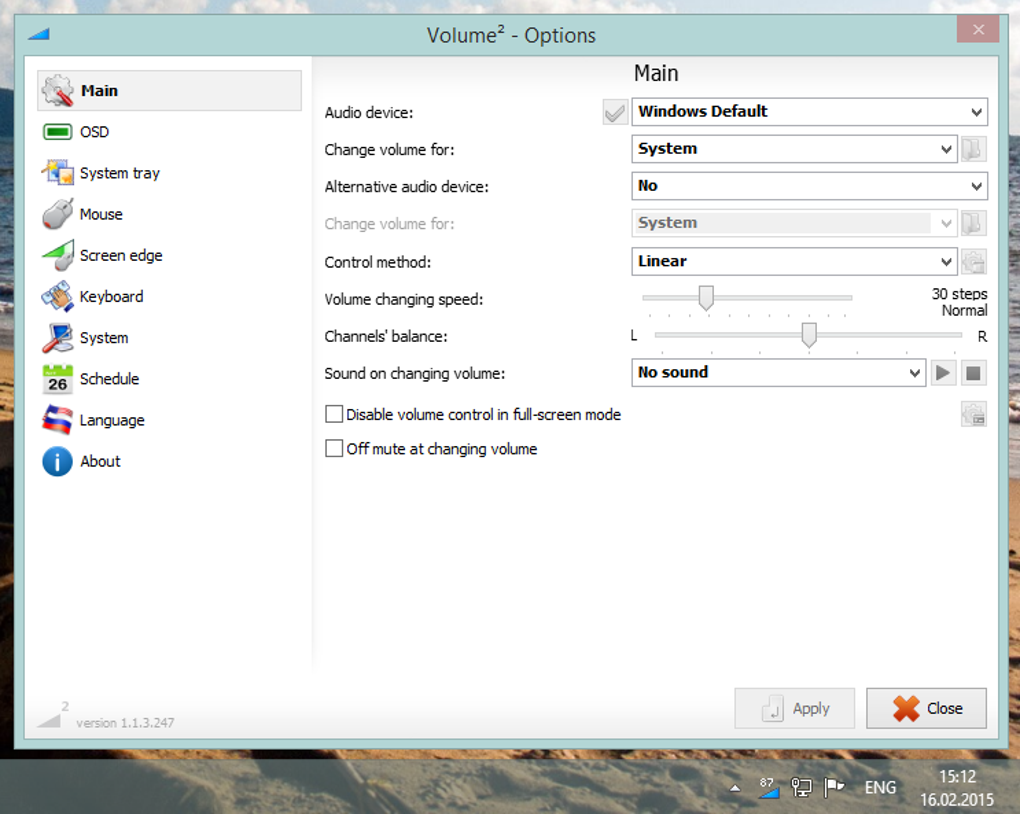
- Choose a default audio device (e.g., speakers, headphones).
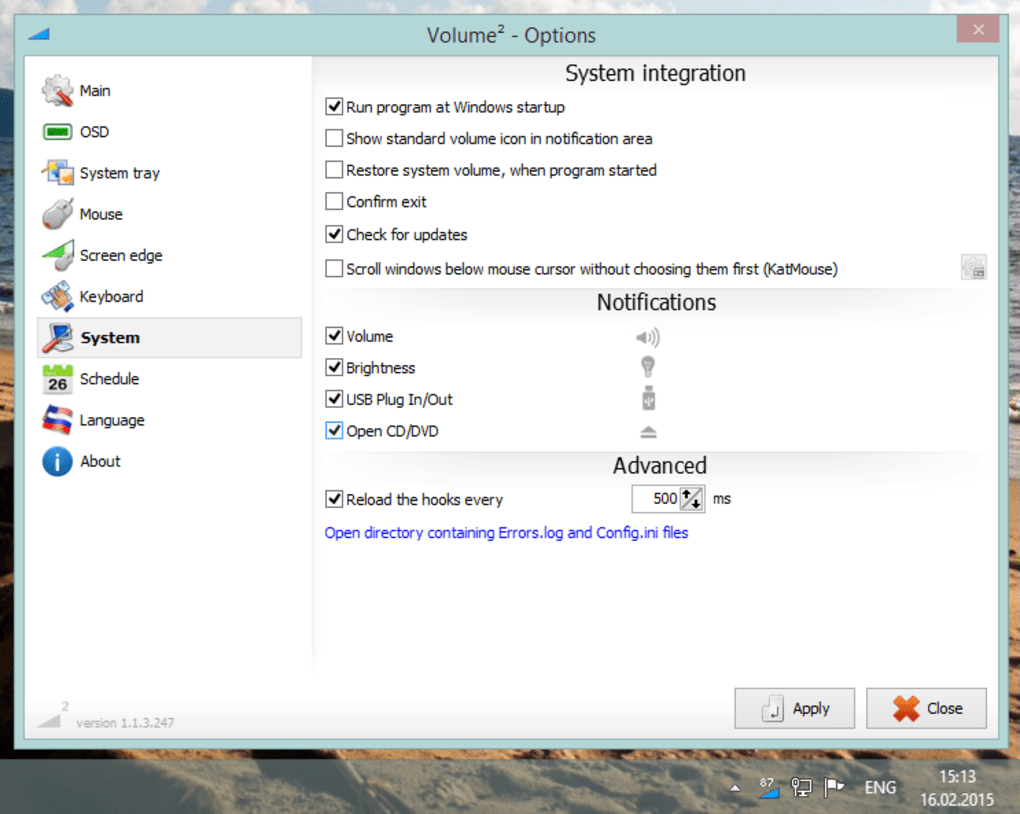
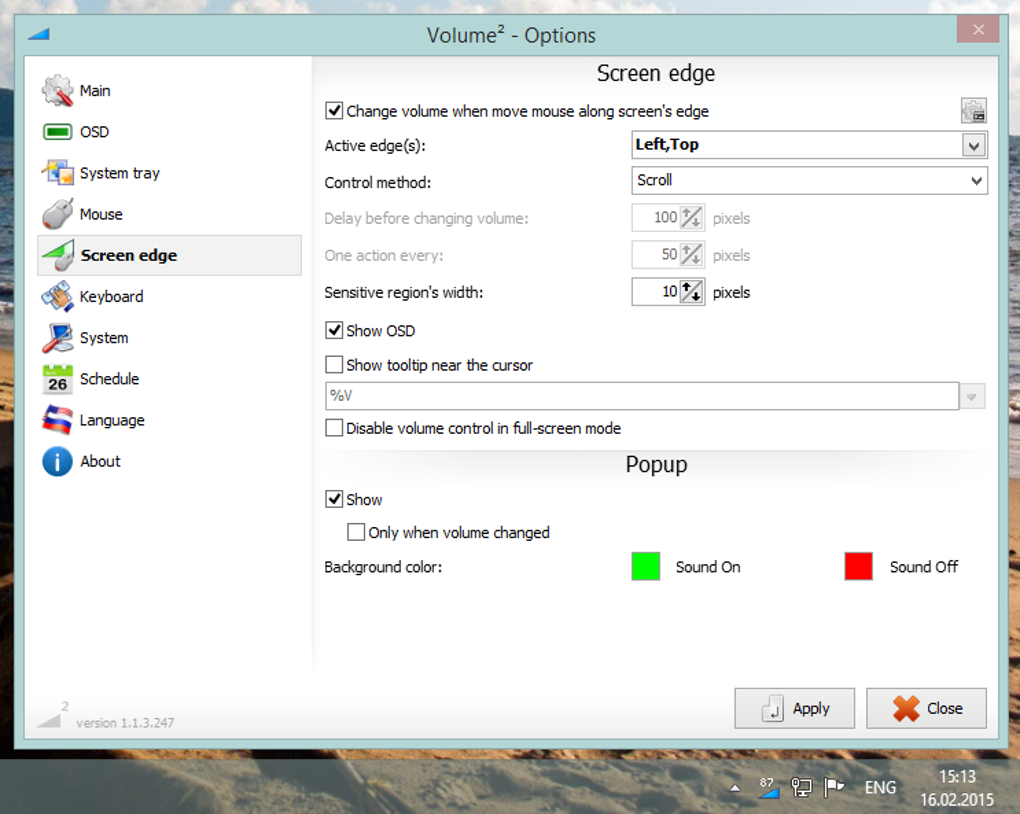
You can skip any of these steps and adjust them later via the Settings panel, accessed by right‑clicking the system tray icon.
Step 4 – Using the Rotating Wheel
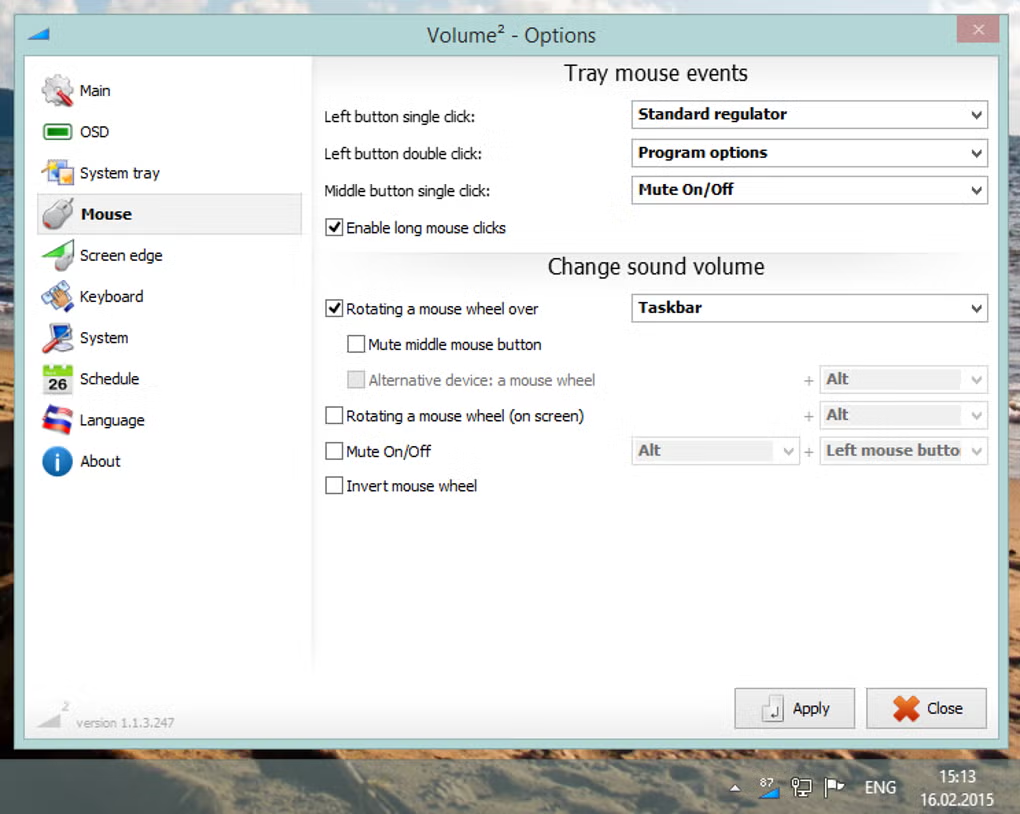
The centerpiece of Volume 2 is the on‑screen rotating wheel. Click and drag the wheel clockwise to increase volume, or counter‑clockwise to decrease it. Scrolling the mouse wheel while the cursor hovers over the wheel provides fine‑grained control in increments of 1 %.
Step 5 – Configuring Hot‑Keys and Equalizer
Open the Hot‑Key Settings dialog to assign shortcuts. Common defaults include Ctrl + Alt + M for mute and Ctrl + Alt + ↑/↓ for volume steps. For the equalizer, navigate to the Audio Effects tab, select a preset, or manually adjust each band. Save custom profiles for instant recall during gaming sessions or music listening.
Step 6 – Portable Use (Optional)
If you need Volume 2 on a public computer, copy the entire installation folder to a USB drive. Run Volume2.exe directly; the program will operate in portable mode, storing preferences on the USB stick rather than the host system.
Overall, the installation experience is designed to be frictionless, allowing you to focus on the audio enhancements rather than technical hurdles.
Compatibility, Pros & Cons
Volume 2 is compatible with all Windows versions from XP to Windows 8, including both 32‑bit and 64‑bit builds. It runs on Windows 7 and Windows 10 (in compatibility mode) without known conflicts. The software also supports USB audio devices, making it ideal for external sound cards, gaming headsets, and Bluetooth speakers that rely on Windows’ generic drivers.
Pros
- Free and lightweight: No cost, minimal resource usage.
- Highly customizable: Skins, hot‑keys, and equalizer presets give users full control.
- Universal device support: Works with any Windows‑compatible audio hardware.
- Portable mode: Run from a USB stick without admin rights.
- Secure updates: Digitally signed installer and regular patches.
Cons
- Windows‑only: No native macOS, Linux, Android, or iOS versions.
- Limited visual themes: While skins are available, the library is smaller than some premium alternatives.
- No built‑in audio recording: Focuses on playback control rather than capture.
- Older Windows support: Though functional on XP, newer UI elements may feel dated on modern systems.
- Manual configuration needed: Users must set up hot‑keys and equalizer profiles to unlock full potential.
Frequently Asked Questions
Is Volume 2 really free?
Yes, Volume 2 is completely free to download and use. There are no hidden fees, subscription plans, or in‑app purchases. All features, including skins and hot‑key support, are available at no cost.
Can I use Volume 2 on Windows 10 or Windows 11?
While the official documentation lists support up to Windows 8, users have reported that Volume 2 runs without issues on Windows 10 in compatibility mode. For Windows 11, the same compatibility mode typically works, though some visual elements may appear slightly outdated.
How do I set up hot‑keys for mute and volume control?
Open the system tray icon, right‑click and select Hot‑Key Settings. From there, you can assign any key combination to actions such as mute, volume up, volume down, or switching audio devices. Click Apply to save your changes.
Is Volume 2 safe to install on corporate computers?
Yes. The installer is digitally signed and has been scanned by multiple antivirus engines with a clean result. However, always follow your organization’s software policy and, if required, run the installer in portable mode to avoid modifying system files.
Can I use Volume 2 with multiple audio devices simultaneously?
Yes. Volume 2 detects all active playback devices. You can switch between them using the device selector in the main interface or assign hot‑keys for quick toggling. This makes it ideal for users who switch between headphones, speakers, and external DACs throughout the day.
Conclusion & Call to Action
Volume 2 stands out as a powerful, free alternative to the default Windows sound manager. Its blend of customizable skins, hot‑key shortcuts, and a ten‑band equalizer provides a level of control that many premium audio tools lack— all while staying under 84 KB and consuming virtually no system resources. Whether you are a gamer seeking instant mute toggles, a music lover craving precise frequency adjustments, or a professional needing quick device switching, Volume 2 delivers a secure and reliable experience without imposing any cost. The only notable limitation is its Windows‑only availability, but for the vast majority of PC users this is more than sufficient.
Ready to upgrade your audio workflow? Download Volume 2 now and start customizing your sound environment today. Experience a smoother, more responsive, and fully personalized audio control— all for free.
Guides & Tutorials
How to install Volume 2
- Click the Download button above.
- Once redirected, accept the terms and click Install.
- Wait for the Volume 2 download to finish on your device.
How to use Volume 2
This software is primarily used for its core features described above. Open the app after installation to explore its capabilities.
User Reviews
No reviews yet. Be the first to share your experience.
You may also like
more
Llama 2
Free-to-use large language model As the new addition to Meta’s arsenal of langua...

NotebookLM
Revolutionizing the note-taking and idea-generation process NotebookLM is an exp...

Github co pilot
AI-inspired software development and coding platform GitHub Copilot is a browser...

Google Gemma
Google’s lightweight AI models Introducing Google Gemma , a family of cutting-ed...

AI Image Enlarger
A free app for Windows, by ai-image-larger. AI Image Enlarger is a free software...

DALL E
AI-driven text-to-image transformation engine DALL·E is a free graphic and desig...